Best Full Page Screenshot Extensions for Chrome, Edge and Firefox
Six full page screenshot extensions for Chrome compared on price, editing, privacy and formats, plus the screenshot tools built into Chrome, Edge and Firefox.
By Marcus Vale 12 min read
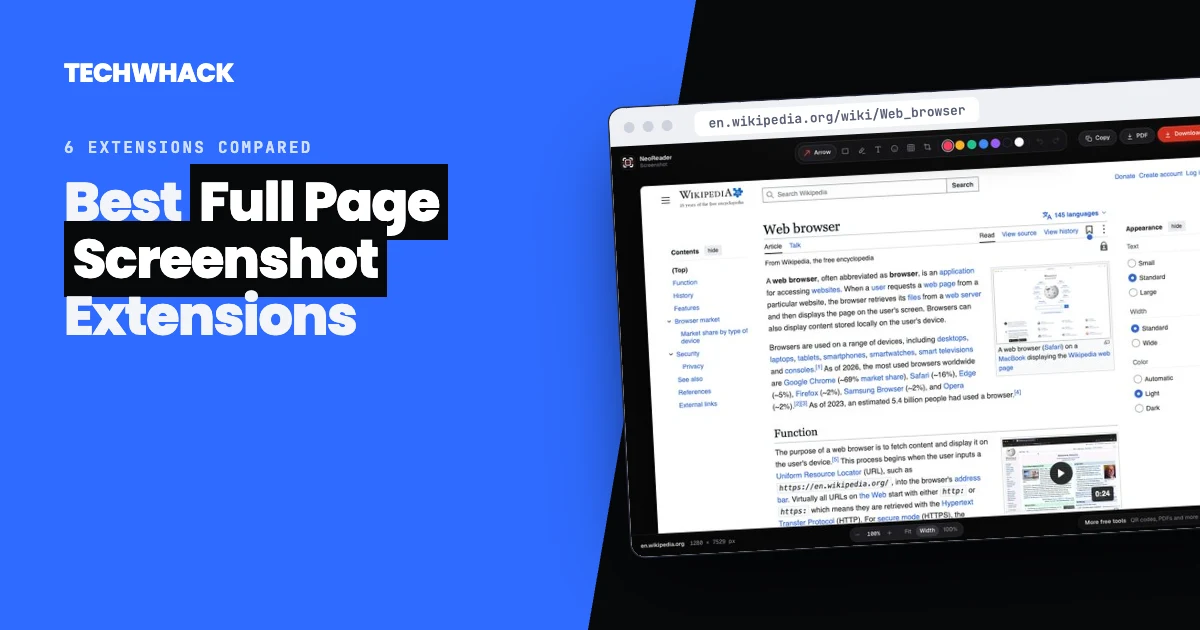
The best full page screenshot extension for most people is Neo Reader Full Page Screenshot. It captures a whole page in one click, then lets you crop, blur and annotate it and save it as PNG, JPG or PDF, all free, with no account and no watermark. GoFullPage is the one most people already have, and it's a fine choice if you only need the capture, because its editor is a paid upgrade. If you live in PDFs, FireShot is worth a look.
We compared six full page screenshot extensions for Chrome, plus the screenshot tools already built into Chrome, Edge and Firefox. Most of the extensions also work in Edge and Firefox.
Store details, prices and permissions below were read on each extension's live listing on November 23, 2026. Prices and features change, so the links go to the page we checked.
At a glance
- Neo Reader Full Page ScreenshotBest full page screenshot extension overall: free editor, blur and PDF
- GoFullPageMost popular, simplest capture
- FireShotBest for PDFs
- Awesome ScreenshotBest for sharing and screen recording
- Full Page ScreenshotFree editor, Chrome only
- FuseBase ProFormerly Nimbus, for FuseBase users
How We Picked
We read every extension's Chrome Web Store listing, its privacy section and its pricing page, and pulled the Firefox versions' permission lists from Mozilla's add-ons API, since Chrome's listings don't show them. We left out tools that only grab the part of the page you can see. Then we ran Neo Reader Full Page Screenshot in Chrome on Wikipedia's Web browser article, a long page with images, a video and a sidebar. The things we cared about most: does it capture the whole page in one clean image, can you blur and mark it up without paying, what does it ask to see, and does it need an account.
1. Neo Reader Full Page Screenshot
Best overall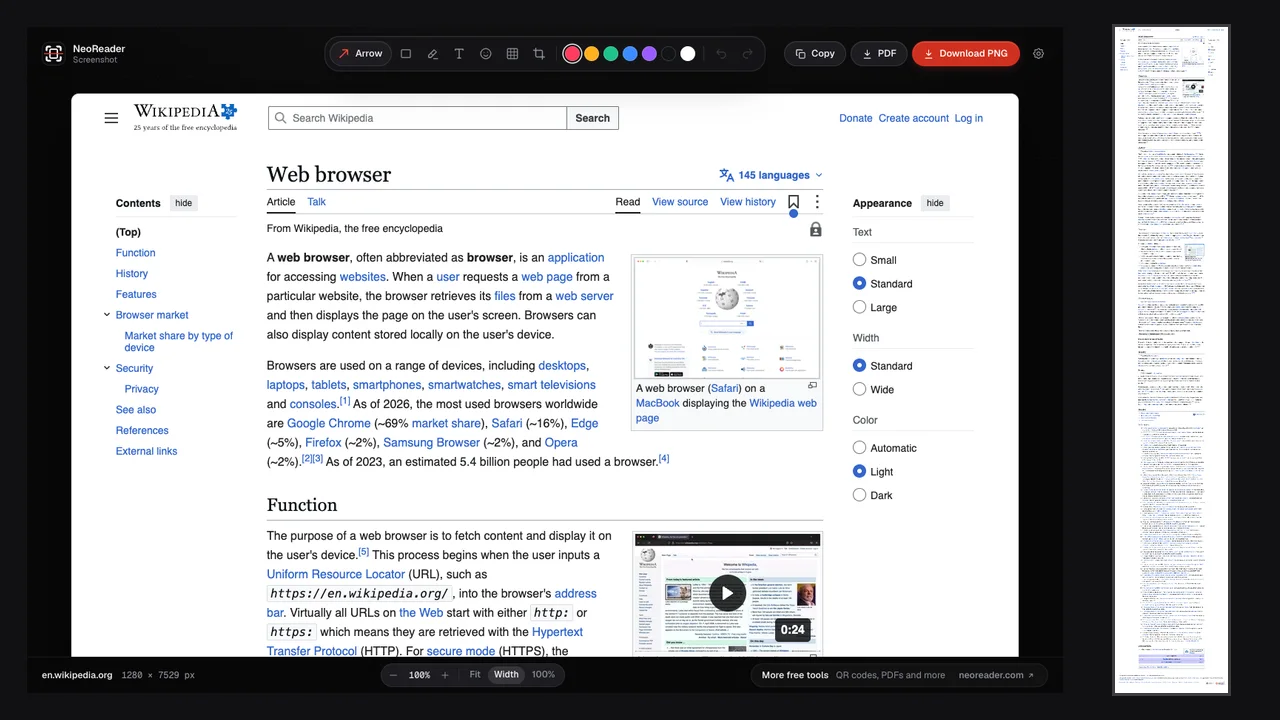
A full page screenshot in one click, with a free editor, blur and PDF export.
- Pricing: Free, every feature, no account
- Platforms: Chrome, Edge, Firefox
- Watermark: None
What we like
- Full page, visible area or a selected area, with a timer and keyboard shortcuts
- Free editor: arrows, boxes, highlight, text, emoji, crop and blur
- PNG, JPG or a multi-page PDF that breaks pages between lines of text
- Can scroll the whole page first so lazy-loaded images show up
- Only reads the tab you click it on, and keeps nothing
Click Neo Reader Full Page Screenshot and it scrolls the page, joins the screens into one image and opens it in an editor. On Wikipedia's Web browser article that came to a single 1280 × 7,529 pixel image, from the top of the article to the footer. The editor is where it pulls ahead of the free tiers elsewhere. Blur, crop, arrows, boxes and text are all free, so you can hide an email address before you share a screenshot without paying for an upgrade.
It saves PNG or JPG, copies to the clipboard, or builds a multi-page PDF that moves each page break into the gap between lines, so text isn't sliced in half. A "Load the Whole Page First" setting scrolls through once before capturing, which fixes the blank gaps you get on pages that load images as you scroll. Shortcuts are Alt+Shift+F for the full page, V for the visible area and S for a selection. It asks only for activeTab, scripting and storage, so it can only see the tab you click it on, and its privacy policy says captures stay in your browser and it collects no data. It's on the Chrome Web Store, Edge Add-ons and Firefox Add-ons.
2. GoFullPage
Most popular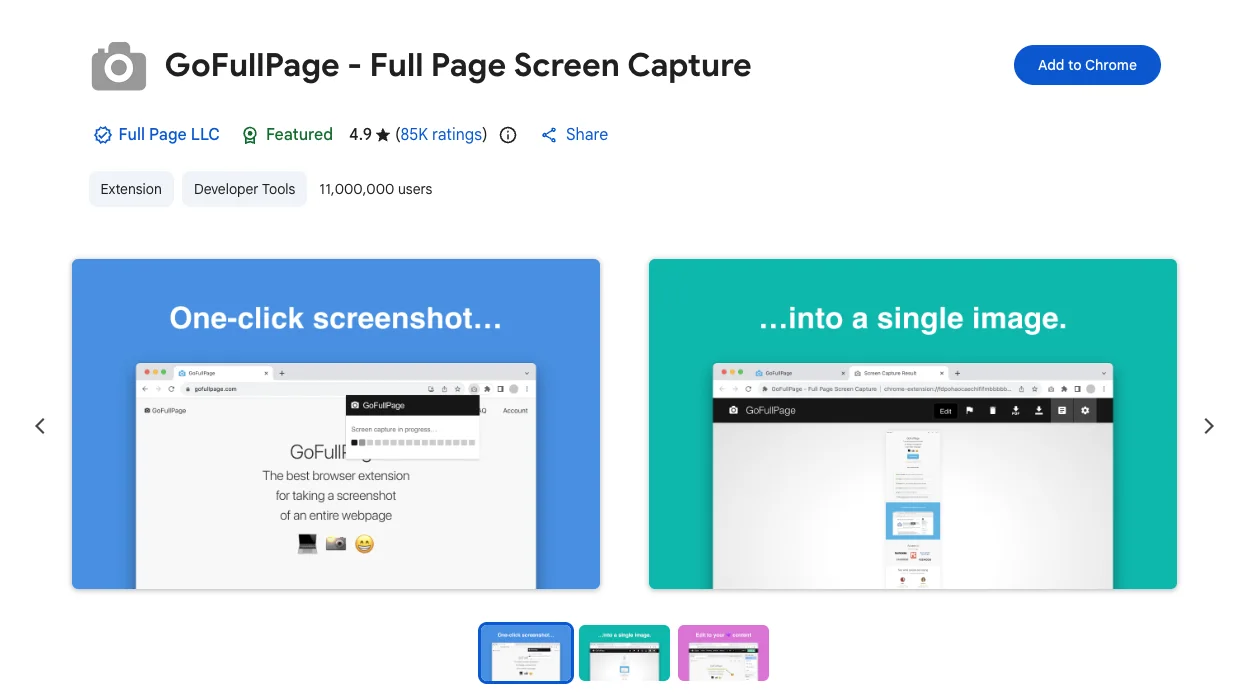
The full page screenshot extension most people already use, with editing as a paid extra.
- Pricing: Free capture. Premium is $1 a month
- Platforms: Chrome, Edge, Firefox
- Watermark: None
What we like
- One click, with no limit on free captures
- Handles scrolling panels and frames inside a page
- PNG, JPG and PDF downloads on the free plan
What we don't like
- Crop, blur, text and highlights are Premium only
- Splits very long pages into several images
- Pulled from some Chrome users' browsers in August 2026
GoFullPage is the name people search for, and it had 11,000,000 users and a 4.9 rating from 85K ratings on Chrome when we checked. The free version does the capture well: click the icon or press Alt+Shift+P and it scrolls, stitches and opens the result, which you can download as an image or PDF. Anything past that costs money. Cropping, blur, text, highlights and a URL and date stamp are all in Premium at $1 a month. Its FAQ says captures stay in your browser, and it can't capture PDFs or sites that control scrolling with their own code.
In August 2026, Chrome showed a policy warning and removed GoFullPage from some people's browsers. Someone posting as the GoFullPage team said on Reddit it was a copyright-related removal made in error, not a security problem. We found no statement from Google. The extension is back on the store and was last updated on November 7, 2026. It's on Edge and Firefox too.
3. FireShot
Best for PDFs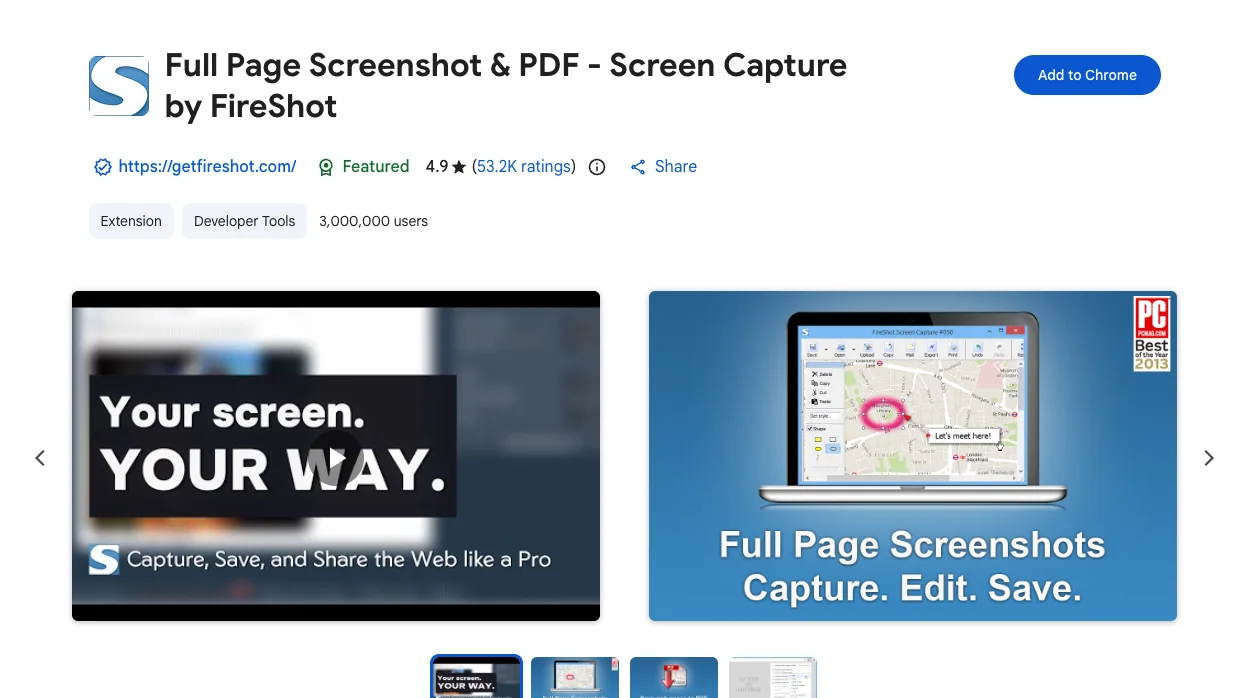
A long-running capture tool built around PDFs, with most extras in the Pro version.
- Pricing: Free. Pro is $39.95 a year or $99.95 once (pricing)
- Platforms: Chrome, Edge, Firefox
- Watermark: None stated
What we like
- Free full page, visible area and selection, saved as PNG, JPEG or PDF
- Pro makes PDFs with clickable links and searchable text
- Pro can put every open tab into one PDF
What we don't like
- The editor, blur and annotations are Pro only
- Pro costs far more than the others
- The Firefox version was last updated in June 2023
FireShot has been around for years and had 3,000,000 users on Chrome when we checked. The free version captures the full page, the visible part or a selection and saves it as PNG, JPEG or a basic PDF, and its listing says that version will always be free. The reasons to pay are mostly about PDFs: Pro keeps links clickable and text searchable, and can capture all your tabs into one file. The editor, blur and a URL stamp are Pro features too, at $39.95 a year or $99.95 for a lifetime licence. On Firefox, its add-on asks for access to every site and was last updated in June 2023, while the Edge and Chrome versions were updated this month.
4. Awesome Screenshot
Best for sharing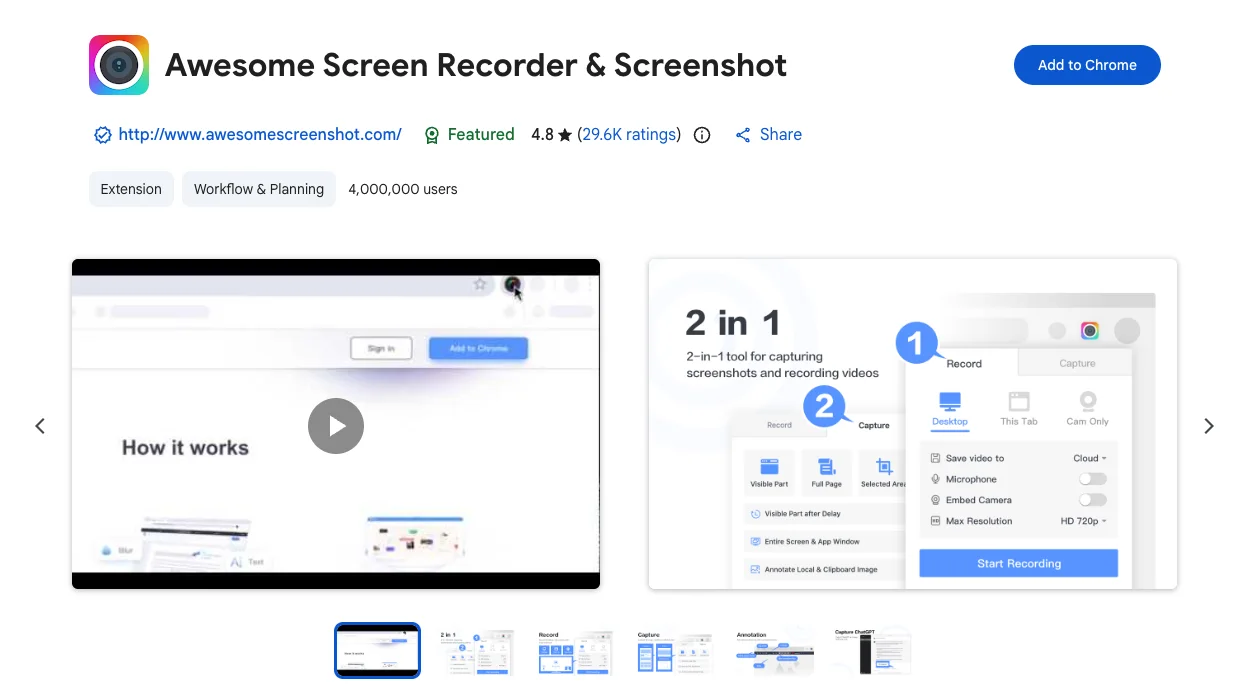
Screenshots and screen recording in one extension, built around a cloud account and share links.
- Pricing: Free plan, paid plans for more storage and tools (pricing)
- Platforms: Chrome, Edge, Firefox
- Watermark: None stated
What we like
- Screenshots and screen recordings from one button
- Share links and sends to Jira, Slack, Trello, Asana and GitHub
- Unlimited screenshots saved to your computer on the free plan
What we don't like
- Free plan caps cloud screenshots at 100
- Only basic annotation tools on the free plan
- Its privacy section says it handles website content
Awesome Screenshot is as much a screen recorder as a screenshot tool, and it's built for teams that share captures. It does full page, visible area, selection and delayed captures, with crop, shapes, arrows, text and blur in the editor. Saving to your own computer is unlimited, but the free plan keeps only 100 screenshots in your online account and limits the annotation tools, so the share-link side really wants a paid plan. Its Chrome listing says it handles website content, and the Firefox version asks for every site and your cookies. It had 4,000,000 users on Chrome when we checked.
5. Full Page Screenshot - Screen Capture & Editor
Free editor on Chrome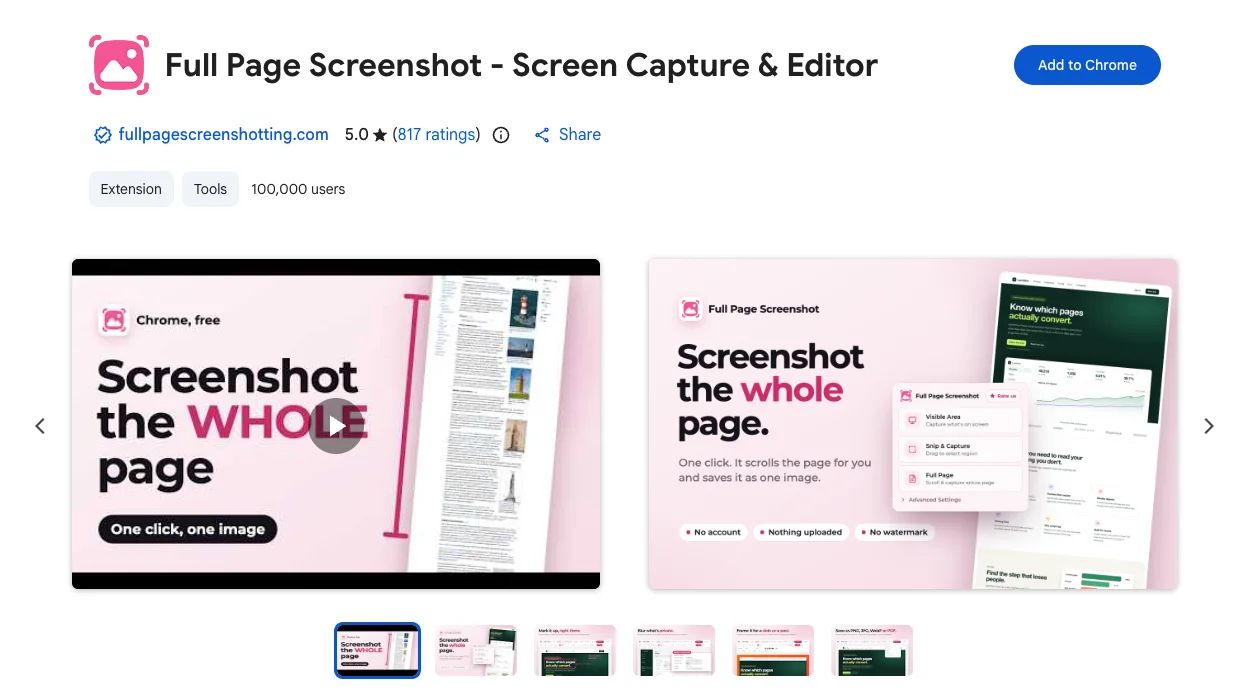
A newer free capture tool with its editor included, for Chrome only.
- Pricing: Free
- Platforms: Chrome
- Watermark: None
What we like
- Arrows, text, shapes, freehand, crop and blur, all free
- PNG, JPG, WebP and PDF
- No account, and its site says nothing is uploaded
What we don't like
- Chrome only, with no Edge or Firefox version
- A much smaller user base than the big names
Full Page Screenshot - Screen Capture & Editor is the other free option here that doesn't hold its editor back. You get blur, crop and annotations at no cost, and you can save as PNG, JPG, WebP or PDF. It had 100,000 users and a 5.0 rating from 817 ratings on Chrome when we checked, and was updated on November 6, 2026. The catch is that it's Chrome only, so it's no help if you also use Firefox or want the same tool in Edge.
6. FuseBase Pro (formerly Nimbus Screenshot)
For FuseBase users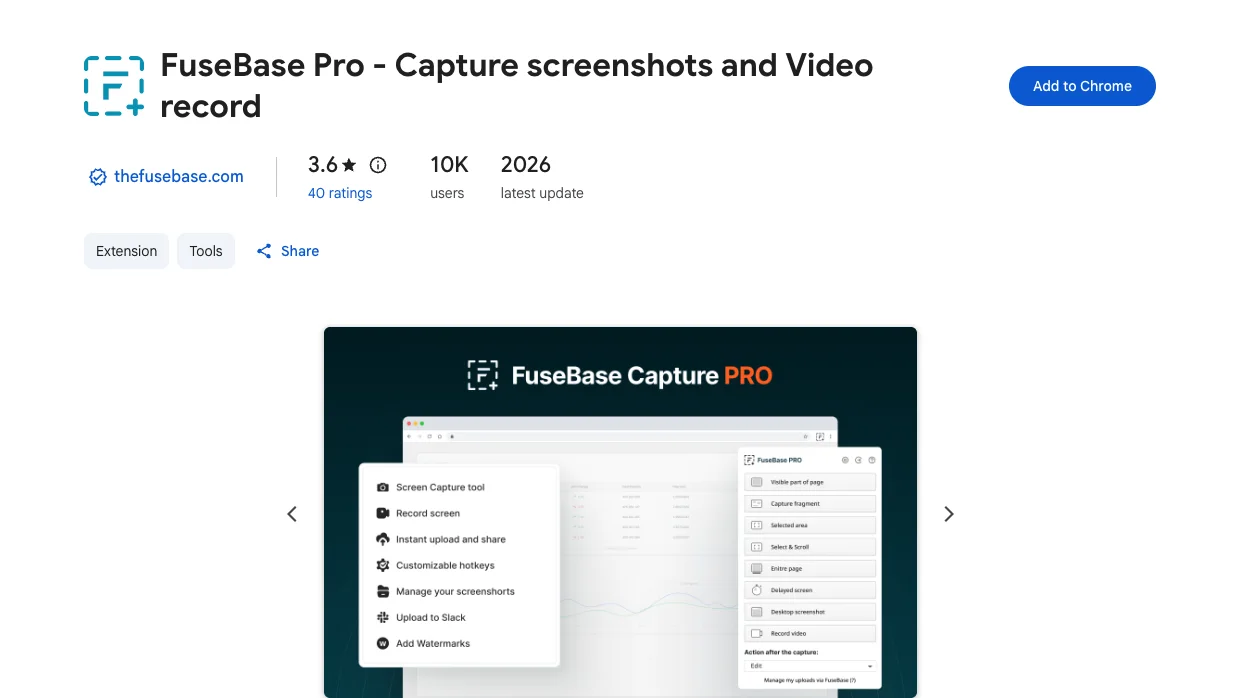
Nimbus Screenshot's successor, now tied to the FuseBase workspace app.
- Pricing: Free plan, Premium for blur and more (details)
- Platforms: Chrome (the old Nimbus Firefox add-on dates from 2020)
- Watermark: Optional, Premium
What we like
- Screenshots plus screen and webcam recording
- Arrows, text boxes, stickers and crop
- Upload and share without signing up
What we don't like
- Blur is a Premium feature
- Reviews say whole-page capture went behind the paywall in 2025
- Rated 3.6 from 40 ratings, the lowest here
If you used Nimbus Screenshot, this is where it went. FuseBase Pro is published by Nimbus Web, and it captures screenshots and records video, with cloud saving through a FuseBase account. Blur, watermarks and GIF or MP4 conversion are marked Premium on its listing. Several 2025 reviews say whole-page capture moved behind the paywall after the relaunch. Its Chrome privacy section says it handles personal and sign-in information. Don't confuse it with Nimble Capture, a different extension that Chrome flagged as malware in February 2025.
Full Page Screenshot Extensions Compared
| Extension | Price | Free blur and editing | Account needed | Saves as | Browsers | Firefox version asks for every site |
|---|---|---|---|---|---|---|
| Neo Reader Full Page Screenshot | Free, all features | Yes | No | PNG, JPG, PDF | Chrome, Edge, Firefox | No |
| GoFullPage | Free, Premium $1/mo | Premium | No | PNG, JPG, PDF | Chrome, Edge, Firefox | No |
| FireShot | Free, Pro $39.95/yr | Pro | No | PNG, JPEG, PDF | Chrome, Edge, Firefox | Yes |
| Awesome Screenshot | Free, paid plans | Basic tools | For cloud and sharing | PNG, JPG, PDF | Chrome, Edge, Firefox | Yes |
| Full Page Screenshot | Free | Yes | No | PNG, JPG, WebP, PDF | Chrome | No Firefox version |
| FuseBase Pro | Free, Premium | Blur is Premium | For cloud saving | PNG, JPG, PDF | Chrome | Yes (old Nimbus add-on) |
How to Take a Full Page Screenshot Without an Extension
Every major browser can do it already, just without an editor.
- Chrome: open DevTools (F12, or Ctrl+Shift+I on Windows and Cmd+Option+I on a Mac), turn on the device toolbar, then open its More options menu and choose Capture full size screenshot. Chrome saves a PNG to your Downloads folder.
- Edge: press Ctrl+Shift+S or open Web capture from the ... menu, then choose Capture full page. You can draw on it before you save.
- Firefox: right-click an empty part of the page, choose Take Screenshot (Command+Shift+S on a Mac), then Save full page and Download or Copy.
Edge's Web capture is the most usable of the three. Chrome's DevTools route works but is buried, and none of them can blur anything, which is the main reason to install an extension.
Why Full Page Screenshots Come Out Wrong
An extension takes a full page screenshot by scrolling the page and stitching the screens together, so anything that changes while it scrolls can spoil the result. Images that only load as you scroll leave blank boxes. Neo Reader's "Load the Whole Page First" setting scrolls through once before it starts, and its "Wait on Each Screen" setting gives slow pages longer. Sticky headers can repeat on every screen, so check that a tool shows them once. Web apps like Gmail scroll inside a panel rather than the page, which some tools miss. Very tall pages hit image size limits, which is why GoFullPage splits them into several files and why Neo Reader switches long PDFs to A4 pages.
Are Screenshot Extensions Safe?
The well-known ones are, but check what they ask for. A screenshot extension only needs to see the tab you're capturing, yet several of the Firefox versions above ask for every site you visit, and some also ask for your cookies. Prefer extensions that use the activeTab permission, which only works on the tab you click, and that keep captures on your computer unless you choose to upload them. Install from the official store link rather than a search ad, and watch for look-alikes: Nimble Capture, not to be confused with Nimbus, was flagged as malware by Chrome in 2025.
Which Full Page Screenshot Extension Should You Pick?
- Choose Neo Reader Full Page Screenshot if you want the capture, blur, editor and PDF free in Chrome, Edge and Firefox, with nothing uploaded.
- Choose GoFullPage if you only need the image and like using what everyone else uses.
- Choose FireShot if you need PDFs with clickable links and searchable text, and don't mind paying.
- Choose Awesome Screenshot if you share captures with a team and want screen recording too.
- Choose the built-in tools if you take a full page screenshot once in a while and never need to blur anything.
Want more add-ons that earn their place? See our pick of the best browser extensions and the best dark mode extensions.
Frequently asked
What is the best full page screenshot extension for Chrome?
Can Chrome take a full page screenshot without an extension?
Is GoFullPage safe?
Does GoFullPage work on Firefox and Edge?
Is there a free full page screenshot extension with no watermark?
Why does my full page screenshot cut off or show blank areas?
How do I blur personal information in a screenshot for free?
Does Lightshot take full page screenshots?
Follow topics, companies and writers from this story to see more like it in your feed and get email updates.
- ChromeTopic
- PrivacyTopic
- BrowsersTopic
- Marcus ValeWriter

 Continue with Google