How to Convert JPG to PDF (and Combine Several Into One)
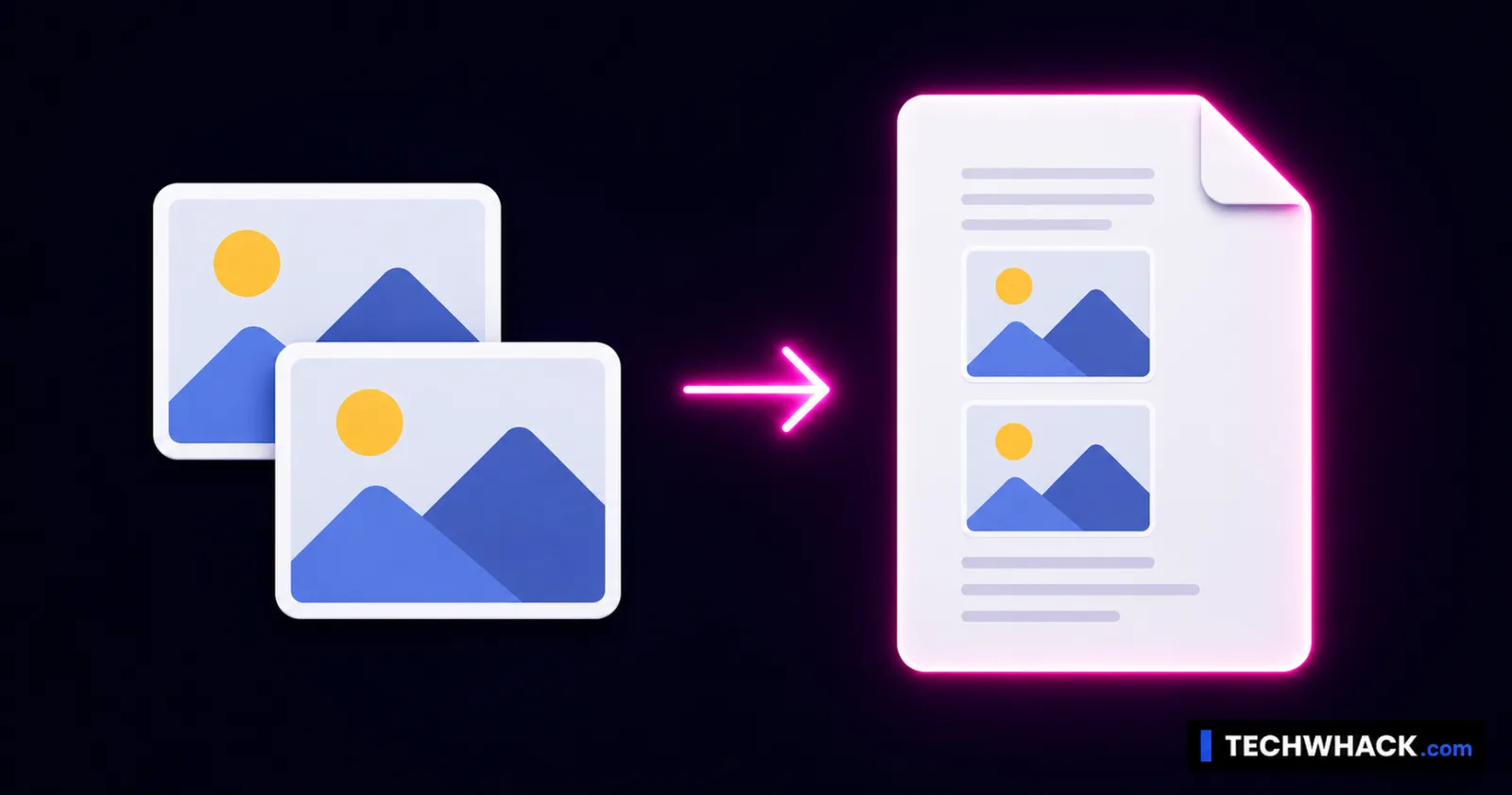
To convert a JPG to PDF, drop your image into the free JPG to PDF tool and download the PDF — or add several images, drag them into order, and combine them into one multi-page PDF. It runs entirely in your browser, so nothing is uploaded and there is no watermark.
On this page
Convert images to PDF in three steps
- Open the JPG to PDF tool and add your image(s) — drag them on or click to select. Add one, or a generous batch.
- Order them (if you added several). Drag the images into the sequence you want; that's the page order in the final PDF.
- Convert and download. One image becomes a one-page PDF; multiple images become a single multi-page PDF. No account, no watermark, nothing sent to a server.
The real reason you're here: "they want a PDF, not a photo"
This is the use case that drives most JPG-to-PDF searches, and most guides barely mention it. A job application, a government or visa form, a university portal, a rental application, an expense system — they say "upload as PDF," and you've got a photo of your ID, your signed form, your receipt, or your certificate. The portal rejects the JPG.
The fix is exactly this tool: snap or pick the photo, convert it to PDF, upload the PDF. Done. And because you can combine multiple images into one PDF, a two-page form photographed as two pictures becomes a single tidy two-page document — which is usually what "upload one PDF" actually means.
Turning a phone photo into a clean PDF
You don't need a scanner. Photograph the document in good light, straight-on, then:
- Open the JPG to PDF tool in your phone's browser.
- Add the photo(s) from your camera roll.
- Reorder if it's multi-page, convert, and the PDF saves back to your phone — ready to attach or upload.
A couple of quick quality tips, since the photo is your document: fill the frame with the page, avoid shadows and glare, and keep it flat. The tool embeds your image at its real resolution, so a sharp photo makes a sharp PDF — and a blurry one makes a blurry PDF. Garbage in, garbage out.
Does converting to PDF lose quality?
For JPG and PNG, no — the image is placed into the PDF as-is, at its original resolution. A PDF is just a container here; your picture goes in untouched. (Other formats like WebP are re-encoded to fit, which is effectively lossless for this purpose.) So the PDF looks exactly like your image. If the result file is large because you combined several high-res photos and you need to email it, run it through the free Compress PDF tool afterward.
Orientation and page size
Each image becomes a page sized to match it, so a portrait photo makes a portrait page and a landscape shot makes a landscape page — no awkward cropping. If you're combining a mix, that's fine; each page fits its own image. For forms, portrait photos taken upright generally give the cleanest, most "document-like" result.
PNG vs JPG as your source
Both convert perfectly. The difference is in the source image, not the conversion:
- JPG is best for photographs and photographed documents — smaller files, fine for this.
- PNG is best for screenshots and anything with sharp text or lines (it's lossless), so a screenshot saved as PNG → PDF stays crisp. Use whichever you already have; the tool handles PNG to PDF exactly the same way.
Image to PDF, photo to PDF, JPEG to PDF — all the same job
Whether you searched image to PDF, photo to PDF, JPEG to PDF, PNG to PDF, convert a picture to PDF, combine images into a PDF, or scan to PDF with your phone — it's one task, and the JPG to PDF tool does all of it, free and in your browser.