How to Compress a PDF Without Wrecking the Quality
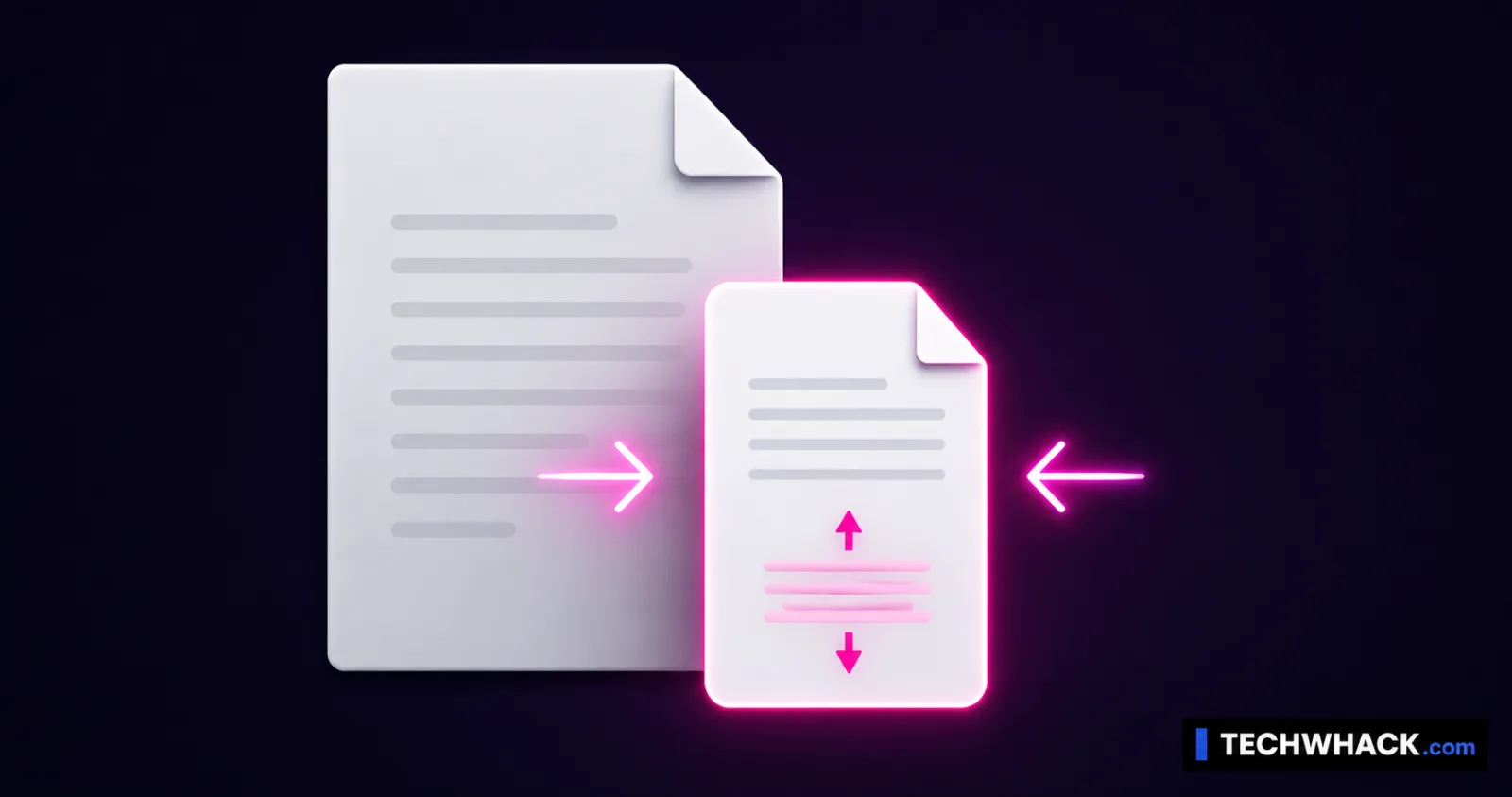
To compress a PDF, upload it to the free Compress PDF tool, choose a level — Smaller, Recommended, or Higher quality — and download the smaller file. Your file is processed and then deleted immediately afterward — nothing is stored.
On this page
- Compress a PDF in three steps
- Why PDFs get big in the first place
- "Why didn't my PDF get smaller?" — the honest answer
- Getting a PDF under a size limit (the email problem)
- Lossy vs. lossless, in plain terms
- Is it safe? What happens to my file?
- Reduce PDF size, shrink a PDF, make a PDF smaller — same thing
Compress a PDF in three steps
- Open the Compress PDF tool and upload your PDF (up to about 50MB).
- Pick a level:
- Smaller — squeezes hardest. Best for getting under a size limit when readability matters more than pixel-perfect images.
- Recommended — the balanced default. Noticeably smaller, still looks clean. Start here.
- Higher quality — gentle compression that keeps images crisp; smaller savings.
- Click Compress and download. If the tool can't make your file meaningfully smaller, it gives you back the original unchanged rather than a pointless "compressed" file that's the same size.
The whole job runs on our server and the file is wiped right after you download it — it's never kept, and there's no paywall on the stronger setting.
Why PDFs get big in the first place
This is the part most guides skip, and it's the key to the whole thing. A PDF's size is almost entirely about what's inside it:
- Text is tiny. A 50-page text contract might only be a few hundred KB.
- Images and scans are huge. A PDF made from phone photos or a flatbed scan is basically a stack of high-resolution images wearing a PDF costume — that's what blows the size up.
So compression works by shrinking the images (lowering their resolution and re-encoding them) and stripping unused data like leftover fonts and metadata. The text is left alone — it's already small and you don't want it touched.
"Why didn't my PDF get smaller?" — the honest answer
If you compressed a PDF and the size barely moved, it's almost certainly a text-based PDF. There were no big images to shrink, so there was nothing to gain — the file was already about as small as it gets. That's not a failure of the tool; it's physics. (It's also why our tool hands back the original instead of pretending: no images to compress = no savings to fake.)
The flip side: a scanned or image-heavy PDF can shrink dramatically — often 50–90% — because those images have tons of resolution you don't need for on-screen reading or email.
Rule of thumb: mostly text → expect little. Mostly scans/images → expect a lot.
Getting a PDF under a size limit (the email problem)
The number one reason people compress a PDF: it's too big to email. Gmail caps attachments at 25MB, and plenty of upload forms cap lower. Here's how to actually hit a target:
- Just over the limit? Run Recommended once — usually enough.
- Way over (a fat scan)? Use Smaller. Scanned documents have the most to give.
- Still too big? Two moves: split the PDF and send in parts, or — if it's image-heavy — the resolution is the bottleneck, so Smaller is your best lever.
- Need it tiny (under 1MB)? Achievable for scans with Smaller; near-impossible for a long text-and-graphics report without losing readability — at that point, splitting is the smarter call.
Be realistic about "compress to exactly 100KB" targets you see promised elsewhere — for anything but a light document that usually means mangling it. Smaller-but-still-readable beats tiny-but-useless.
Lossy vs. lossless, in plain terms
- Lossless keeps everything perfectly but only trims the fat (unused fonts, metadata) — modest savings, mostly on text PDFs that were already small.
- Lossy re-encodes images at lower quality — big savings on image/scan PDFs, with a quality trade-off you control by picking a higher or lower level.
Our levels move along that scale: Higher quality stays gentle; Smaller leans into lossy image compression for maximum shrink. Pick based on whether size or image fidelity matters more for this file.
Is it safe? What happens to my file?
The PDF is uploaded over an encrypted connection, compressed, and deleted immediately after you download it — it isn't stored, mined, or kept around. For genuinely sensitive documents you can also do plenty of PDF tasks fully in your browser (our Merge PDF tool never uploads anything, for example) — but image compression genuinely needs to process the file, so here it's "processed then erased," not "never sent."
Reduce PDF size, shrink a PDF, make a PDF smaller — same thing
Whether you searched to reduce PDF size, shrink a PDF, make a PDF smaller, lower the PDF file size, find a PDF compressor, or compress a PDF for email, it's one task and the Compress PDF tool handles it. It works the same on mobile — open it in your phone's browser, upload, compress, download.