How to Convert a PDF to JPG Images
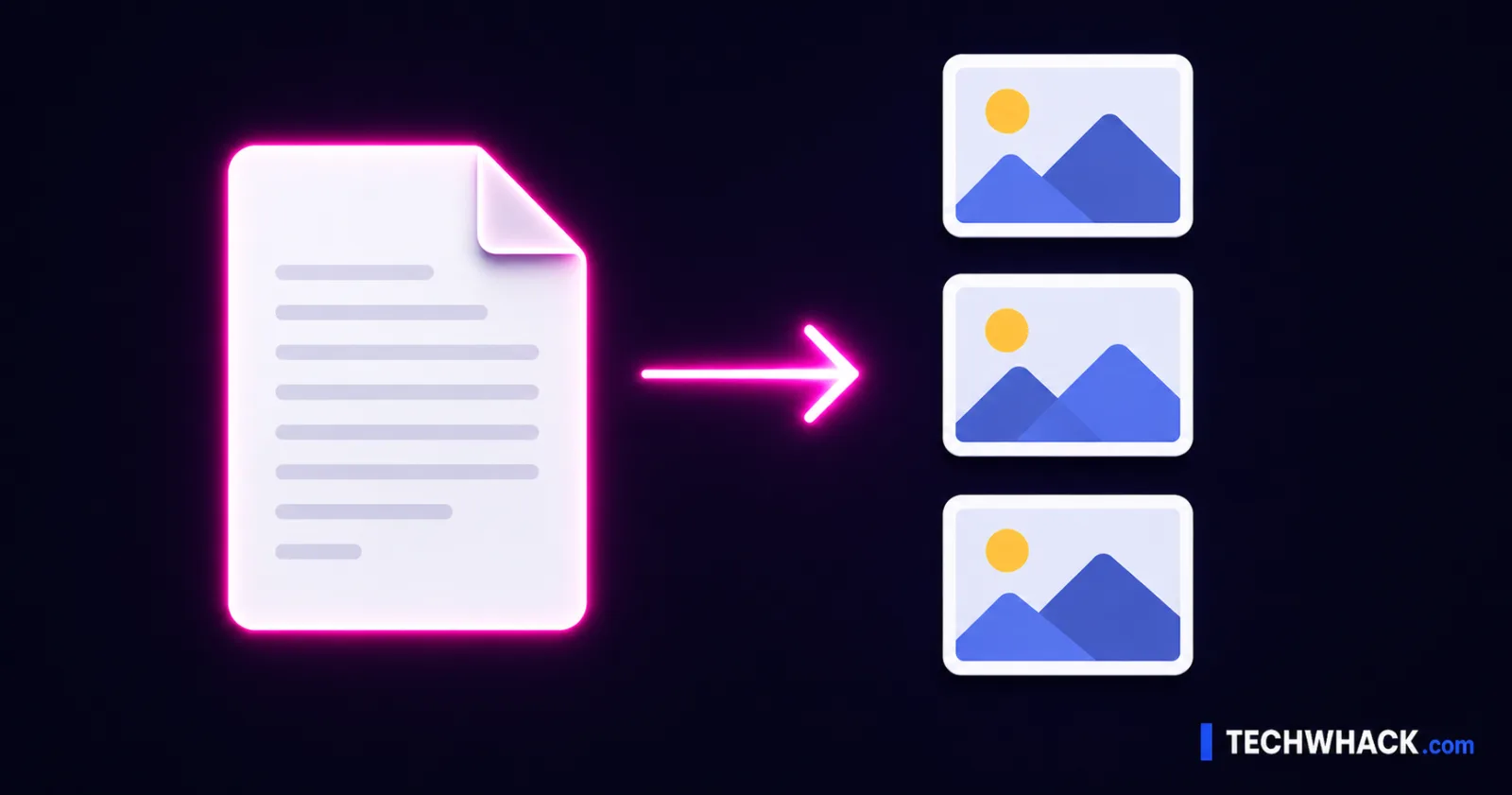
To convert a PDF to JPG, drop it into the free PDF to JPG tool, choose a quality — Standard or High — and download. A one-page PDF gives you a single JPG; a multi-page PDF gives you a ZIP with one image per page. It runs in your browser, so nothing is uploaded and there is no watermark.
On this page
Convert a PDF to JPG in three steps
- Open the PDF to JPG tool and add your PDF (drag it on or click to select).
- Pick a quality:
- Standard — sharp enough for screens, social, and previews; smaller images.
- High — renders at higher resolution for crisp text and zoomable detail; larger images.
- Convert and download. Single page → one JPG. Multiple pages → a ZIP containing one JPG per page, in order. Nothing is sent to a server, and there's no watermark on the output.
Standard vs. High — which to pick
Each page is rendered to an image, and the quality setting controls the resolution that render happens at. More resolution = sharper text and more detail when zoomed = a bigger file.
- Use Standard when the image is for a screen: a social post, a thumbnail, a website preview, a quick share. It's clean and lightweight.
- Use High when the detail matters: printing the page, embedding it where people will zoom in, or capturing a page with small text or fine lines. It's sharper but heavier.
Rule of thumb: on-screen → Standard; print or zoom → High. If a Standard image looks soft for your use, re-run on High.
"Convert pages" vs. "extract images" — they're not the same
This trips people up, and most converters blur it. There are two different things you might want:
- Convert PDF pages to JPG (what this tool does): it takes each page — text, layout, images, all of it — and renders it as one flat JPG. You get a picture of the page.
- Extract the images from a PDF: pulling out the original embedded photos that were placed inside the PDF, as separate files.
If you want a picture of the whole page as it looks, you're in the right place. If you specifically need the original embedded photos pulled out, that's a different job (image extraction) — not what page-rendering does.
When you want PNG instead of JPG
JPG is the right call for most PDF pages — small files, fine for documents and photos. But pick PNG when the page is mostly sharp text, line art, diagrams, or screenshots, because PNG is lossless and keeps edges crisp with no JPG "fuzz" around letters. For that, use the dedicated Convert Image tool after, or convert the page and switch formats there. Quick version: photo-like page → JPG; crisp-text/diagram page → PNG.
Common reasons people do this
- Posting a page to social media or a chat that won't preview a PDF.
- Embedding a page as an image in a doc, slide, or website.
- Using a page where PDFs aren't accepted — some upload forms and editors only take images.
- Grabbing a single page out of a long document as a shareable picture.
PDF to image, PDF to JPEG, export PDF pages — same task
Whether you searched PDF to image, PDF to JPEG, convert PDF to a picture, export PDF pages as images, save a PDF as a JPG, or PDF page to PNG, it's the same job and the PDF to JPG tool handles it. It works the same on mobile — open it in your phone's browser, add the PDF, convert, and the image (or ZIP) saves back to your phone.